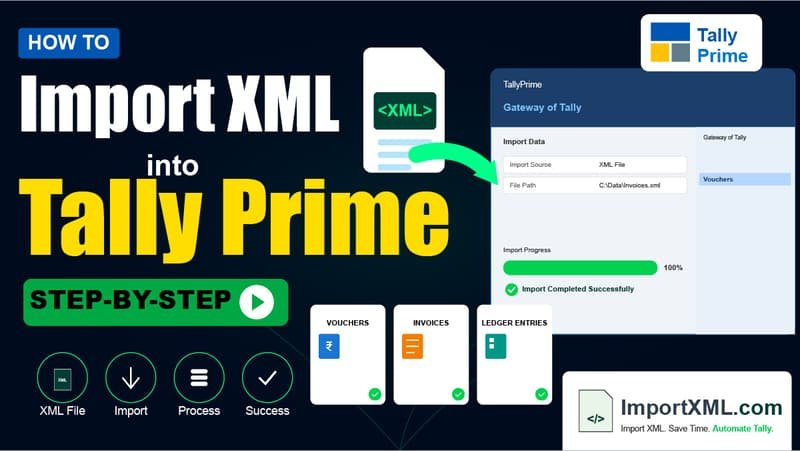
Tally Prime's XML import feature is genuinely one of the most powerful things about it — you can push hundreds of purchase or sales vouchers into Tally in seconds, with zero manual entry. But it's also the kind of feature where one small slip (wrong file path, missing ledger, wrong company name) results in "nothing happened" and no helpful explanation of why.
This guide covers the complete process from start to finish — the preparation steps that most people skip, the exact Tally menus to navigate, and what to do when the import doesn't produce the expected result.
📋 In this guide:
Before You Start — The Three Prerequisites
Most import problems are caused by skipping the preparation phase, not by anything wrong with the XML file itself. Before you even open Tally, check these three things:
1. Party Ledgers Must Already Exist in Tally
This is the most common reason a Tally import appears to "work" but produces zero vouchers. Tally's XML import does not create ledgers automatically (unless you've used the auto-create ledger option in our tools). If your XML file references a party called "ABC Suppliers Pvt Ltd" and that ledger doesn't exist in your Tally company, Tally will silently reject every voucher for that party.
Before importing, open Tally and confirm that all party ledgers in your Excel file exist under the right group (Sundry Creditors for suppliers, Sundry Debtors for customers). If they don't, create them first — or use our Ledger Master XML Creator to bulk-create them from Excel in one shot.
2. Sales, Purchase, and Tax Ledgers Must Exist
The purchase and sales account ledgers (like "Purchase @ 18%", "Sales @ 5%") and the tax ledgers (IGST, CGST, SGST) must also exist in Tally with exactly the same name as in your Excel template. Tally's ledger matching is case-insensitive but exact on spelling — "Purchase @18%" and "Purchase @ 18%" are treated differently because of the space before 18%.
3. The Company Open in Tally Must Match Your XML
The XML file contains a company name field (<SVCURRENTCOMPANY>). Tally will only import the vouchers if the company currently open in Tally matches this name. If they don't match, the import will complete but show "0 vouchers created." This catches a lot of people who have multiple companies and import into the wrong one by mistake.
Take a Backup First — Every Single Time
Tally's XML import has no "undo" button. If you accidentally import the same file twice, or the ledger names mapped incorrectly, you'll be manually deleting vouchers one by one from the Day Book. A backup takes 30 seconds and saves hours of cleanup.
To take a backup in Tally Prime:
- Go to Company in the top menu bar.
- Select Backup.
- Choose a destination folder (preferably outside the Tally data directory — a separate pen drive or a cloud-synced folder).
- Press Enter to create the backup.
Keep this backup until you've fully verified the import is correct. If anything goes wrong, restore using Company → Restore.
The Import Steps in Tally Prime
Once your prerequisites are in order and you have a backup, the actual import is quick:
- Open Tally Prime and open the correct company.
- In the top menu bar, click Import (or press Alt+O).
- From the dropdown, select Transactions (this is for Purchase, Sales, Payment, Receipt, Journal vouchers).
- In the file path field that appears, you have two options:
- Specify Path: Type or paste the folder path where your XML file is saved (e.g.,
D:\Downloads\). Press Enter. - Tally will show a list of XML files in that folder. Select your file (e.g.,
Purchase_Import_1234567890.xml).
- Specify Path: Type or paste the folder path where your XML file is saved (e.g.,
- Press Enter to start importing. Tally will process the file — for a few hundred vouchers this usually takes 5–15 seconds.
- When complete, Tally shows a message like "Vouchers created: 48, Vouchers modified: 0". If the number is 0, something in the prerequisites was off — see the troubleshooting section below.
If you're importing ledger master data (not vouchers), the path is Import → Masters, not Transactions. This is a common mix-up — Masters and Transactions use different XML structures and different import menus.
The Import Steps in Tally ERP 9
The menus are slightly different in older Tally ERP 9:
- From the Gateway of Tally, go to Import of Data.
- Select Vouchers (for transaction vouchers) or Masters (for ledger data).
- Enter the full file path including the filename (e.g.,
D:\Downloads\purchase.xml). - Press Enter. Tally ERP 9 will process the file and display a completion message.
The XML format generated by our tools is compatible with both Tally Prime and Tally ERP 9 — you don't need to generate separate files for each version.
Verifying the Import Was Successful
Don't close Tally immediately after seeing the "Vouchers created" message. Do a quick spot-check:
Check the Day Book
Go to Day Book (from the Gateway or via Display → Day Book). Set the date range to cover the period of your imported vouchers. You should see the new entries listed. Spot-check a few — verify the party name, date, and total amount match your original Excel data.
Check the Relevant Register
For purchase imports, check the Purchase Register. For sales, check the Sales Register. These give you a total count and value for the period, which you can cross-check against your Excel totals quickly. If the totals match, your import is clean.
Check a Single Voucher in Detail
Open one voucher from the Day Book and verify: Are the party ledger, purchase/sales ledger, and tax ledger names all correct? Is the tax amount (IGST or CGST+SGST) populated correctly? Is the voucher showing as a proper "Invoice View" rather than an accounting-mode entry?
If Something Went Wrong — Reading the Tally.imp Log File
Tally doesn't always show you exactly which vouchers failed and why — but it writes all of this to a log file called Tally.imp in your Tally installation folder.
Open this file in any text editor (Notepad works fine). It contains a log of every voucher that was attempted and either accepted or rejected, with the rejection reason. Common rejection messages you'll see:
- "Ledger Name 'XYZ' does not exist" — The party or tax ledger name in your XML doesn't match any ledger in Tally. Check spelling and spacing.
- "XML Parser Error: Semicolon expected" — An unescaped special character like
&or'in a party name. Our tools handle this automatically, but if you hand-edited the XML file, this can creep in. - "Date out of financial year range" — The voucher date doesn't fall within the open financial year in Tally. Check that you're in the correct financial year in Tally before importing.
- "Duplicate voucher number" — A voucher with this number already exists in Tally (possibly from a previous import). Either alter the existing voucher or use a different voucher number.
For a full breakdown of every common error and its fix, see our separate guide: Tally XML Import Errors — Fixes for Every Common Issue.
Common Mistakes People Make
Importing into the Wrong Financial Year
Tally imports vouchers into whichever financial year is currently open. If your vouchers are dated April 2025 but Tally has 2026-27 open, Tally will reject them as "out of range." Before importing, make sure the financial year open in Tally matches the dates in your XML. You can check and change the active year from Company → Change Voucher Date or by pressing Alt+F2 to change the period.
Importing the Same File Twice
Tally doesn't check whether you've already imported a file — it will cheerfully create duplicate vouchers if you import the same XML again. This is why the backup step matters. If you accidentally double-import, restore from backup rather than trying to identify and delete duplicate vouchers manually.
Wrong File Type Selected
Tally's import dialog shows all files in the selected folder. Make sure you're selecting the correct .xml file and not an old one from a previous run. Our tool names files with a timestamp (e.g., Purchase_Import_1728546291.xml) to help you identify the latest one.
Company Name Has Extra Spaces
If your Tally company is named "M/S ABC TRADING" and your Excel template has "M/S ABC TRADING " (with a trailing space), the company name check will fail and produce zero vouchers. Copy the company name directly from Tally's title bar into your Excel template to avoid this.
Ready to generate your XML file?
Use our free browser-based tools to convert your Excel data into Tally-ready XML — no upload, no signup, no software to install.
FAQ
Can I import the same XML file into multiple Tally companies?
Yes, but Tally will only accept it for the company whose name matches the <SVCURRENTCOMPANY> field in the XML. For different companies, you need to generate separate XML files with the correct company name in each. In our tools, the Company Name column in your Excel template sets this field.
How many vouchers can I import in a single XML file?
There's no hard limit from Tally's side, but practically, files with 500–1000 vouchers tend to import smoothly in 30–60 seconds. Very large files (5000+ vouchers) can take a few minutes and may occasionally time out depending on your machine. If you have thousands of entries, consider splitting your Excel data into batches of 500–1000 rows and generating one XML per batch.
The import shows "Vouchers created: 0" even though no error appeared. Why?
This usually means one of three things: (1) the company name in the XML doesn't match the open Tally company, (2) all the referenced party ledgers or tax ledgers don't exist in Tally, or (3) all the voucher dates are outside the currently open financial year. Check the Tally.imp log file for the rejection reason — it will tell you exactly which voucher was rejected and why.
Can I import vouchers into Tally without internet?
Yes, completely. Tally's XML import is a local operation — it reads the XML file from your computer's hard drive. No internet is needed during the import. Our conversion tools are also browser-based and run the conversion locally in your browser, so the entire workflow from Excel to Tally import can happen entirely offline after the initial page load.
Is there a difference between importing Purchase and Sales XML? Do I use the same menu?
Yes — both Purchase and Sales voucher XML files are imported through the same Tally menu (Import → Transactions). Tally reads the VOUCHERTYPENAME field inside the XML to know whether to create a Purchase or Sales voucher. You don't need to choose a voucher type in the import dialog itself.
How do I import ledger masters (not vouchers) into Tally?
Ledger master data (like creating bulk supplier and customer ledgers) is imported through a different path: Import → Masters (in Tally Prime) or Import of Data → Masters (in Tally ERP 9). Use our Ledger Master XML Creator to generate the correctly formatted XML for this.
Getting import errors?
Our troubleshooting guide covers every common error with the exact fix — from "Ledger does not exist" to silent zero-voucher imports.
🔧 Tally XML Import Errors — Full Fixes Guide →