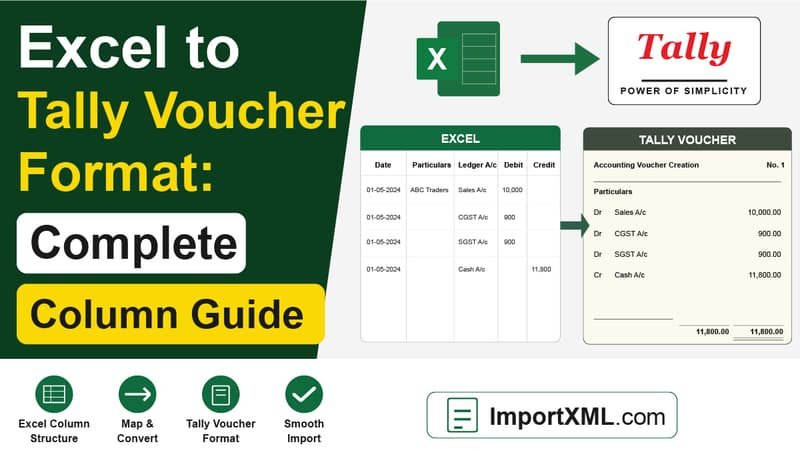
Our Excel-to-Tally converters (Purchase, Sales, and Bank Statement) each use a specific column layout. You don't need to memorize column positions — our tools use smart header matching — but the data inside each column must be in the right format for Tally to accept the import without errors.
💡 Easiest Starting Point
Download the sample template from the tool page. It comes with pre-filled sample rows so you can see the exact expected format for every column before entering your own data. The headers are pre-named for instant recognition.
What a Correctly Filled Template Looks Like
Here's an example of a Purchase template with two invoices — one with IGST (inter-state), one with CGST+SGST (intra-state), and one multi-line entry:
↑ Rows 3 and 4 have the same Voucher No + Party Name — they will be merged into one Purchase voucher (PUR/103) with two line items.
Mandatory Columns
1. Date
The voucher date in Tally. Our tools accept three formats:
DD/MM/YYYY — e.g., 01/03/2026 (recommended)YYYY-MM-DD — e.g., 2026-03-01- Excel serial date — automatically detected if your column is formatted as "Date" in Excel
⚠️ Locale Trap: If Excel is in US locale (MM/DD/YYYY) and you type 01/03/2026, it may interpret this as January 3rd, not March 1st. Always verify the preview table in our tool shows the correct dates before downloading XML.
2. Company Name
The exact name of your Tally company as it appears in the company selection screen. This is placed into the <SVCURRENTCOMPANY> XML tag and must match the open company in Tally when importing. The match is case-insensitive, but extra spaces or punctuation will cause the import to silently produce zero vouchers.
Tip: Copy-paste the company name directly from Tally's title bar to avoid typos.
3. Voucher Number
Your invoice or reference number (e.g., "GST/001", "PUR/101"). This becomes the VOUCHERNUMBER in Tally. Important behaviors:
- Rows with the same Voucher No + same Party Name are merged into one multi-line voucher.
- Rows with the same Voucher No but different Party Names are created as separate vouchers — this correctly handles cases where different suppliers use the same invoice number.
- Rows with a blank Voucher No are skipped and reported in the validation summary.
4. Party Name
The ledger name of the buyer (Sales) or supplier (Purchase) as created in Tally. Must match exactly (case-insensitive).
- Special characters like
& and ' in the party name are automatically escaped — you don't need to change "A & Sons" to anything.
- For cash sales (Sales tool), use "CASH" or your cash ledger name as it appears in Tally.
5. Sales Ledger / Purchase Ledger
The name of the income or expense ledger in Tally that this line item belongs to. Examples: "Sales @ 18%", "Purchase @ 5%", "Sales-Exports". The name must exist in Tally exactly as typed.
A single voucher can have multiple ledger rows (e.g., "Sales @ 5%" and "Sales @ 18%" for a mixed-rate invoice) — just use the same Voucher No + Party Name for both rows.
6. Taxable Amount
The base value of the goods or services before GST. Enter as a plain number (e.g., 10000 or 10000.00). Do not include commas. This is the amount that maps to the Sales/Purchase ledger entry in Tally.
Tax Amount Columns
You enter the actual rupee amounts of each tax — not the percentage. Tally only needs the ledger name and the amount in the XML; the rate is irrelevant at this stage.
IGST Ledger + IGST Amount
For inter-state transactions (where IGST applies). If IGST Amount > 0, the tool uses IGST mode for that row and ignores CGST/SGST columns. The IGST Ledger column is the name of your IGST tax ledger in Tally (e.g., "IGST", "Output IGST", "IGST Payable").
CGST Amount + SGST Amount
For intra-state transactions (where CGST + SGST applies). If IGST Amount is 0 or blank, the tool reads CGST and SGST amounts instead. Both must be entered if applicable (they're typically equal for the same GST rate). The tool defaults to using "CGST" and "SGST" as ledger names — if yours are named differently (e.g., "Output CGST", "CGST Payable"), add CGST Ledger and SGST Ledger columns to your Excel.
Optional Columns
Round Off
A small positive or negative amount to balance the voucher. In Tally, this typically maps to a "Round Off" ledger. If the total of your taxable amount + taxes has a ₹0.40 rounding difference vs. the invoice total, enter 0.40 here. Our tool adds this as a separate LEDGERENTRIES entry with the "Round Off" ledger name.
Narration
A text remark attached to the bottom of the voucher in Tally. Visible in Day Book and printed vouchers. Very useful for bank statements (e.g., "Cheque No 123456 cleared on 01/04/2026") and for adding reference notes to purchase invoices.
🏦 Bank Statement Template: Different Format
The Bank Statement template uses a simpler 5-column format: Date · Narration · Cheque No · Withdrawal · Deposit. The Bank Ledger and Suspense Ledger names are entered in the tool form (not per-row). Withdrawal > 0 creates a Payment voucher; Deposit > 0 creates a Receipt voucher.
Use the Bank Statement Converter →
Column Header Matching Rules
Our tools use smart header matching — you don't need to name columns exactly as shown. The matcher is:
- Case-insensitive: "VoucherNo", "VOUCHER NO", "voucher no" all work.
- Space-insensitive: "TaxableAmount", "Taxable Amount", "taxable amount" all match.
- Best effort: If no matching header is found for a required column, that row is skipped and reported in the validation summary.
That said, using the downloaded template as a base eliminates all header matching ambiguity.