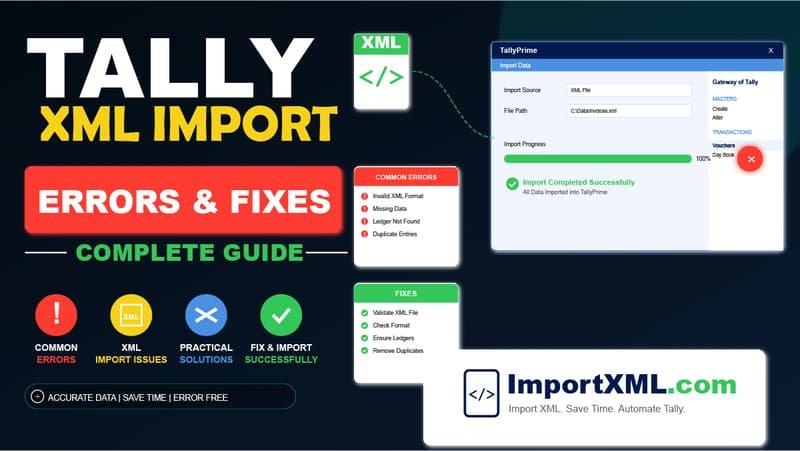
Importing data via XML in Tally Prime is incredibly fast — but Tally is extremely strict about formatting. Even a single spelling mismatch in a ledger name or an un-escaped special character can cause the entire import to fail silently. This guide covers every common error you're likely to encounter, in order of frequency.
After a failed import, open the Tally.imp file located in your Tally Prime installation folder — usually C:\Program Files\TallyPrime\Tally.imp. It logs every voucher attempted and the exact rejection reason. This is the single most useful debugging tool.
Jump to an error:
- Ledger does not exist
- XML Parser Error: Semicolon expected
- Date out of financial year range
- Company name mismatch
- Voucher total mismatch (Debits ≠ Credits)
- Duplicate voucher number
- Import completes but no vouchers appear
- General XML Parse Error / malformed file
1. Error: Ledger Does Not Exist
Message in Tally.imp: Ledger Name 'XYZ Corp' does not exist!
Cause: The XML file contains a ledger name that hasn't been created in your Tally company yet, or the spelling in your Excel file doesn't exactly match the spelling in Tally. Tally's ledger lookup is exact-match (though case-insensitive).
Fix:
- Go to Tally → Chart of Accounts and check the exact spelling of the ledger.
- Common culprits: trailing spaces, "Ltd." vs "Ltd", "& Co." vs "& Co", or missing "M/s" prefix.
- If the ledger genuinely doesn't exist yet, create it in Tally first (Gateway of Tally → Create → Ledger), then re-import.
- If using our converter tools, fix the party name in your Excel file to exactly match Tally, then regenerate the XML.
2. Error: XML Parser Error — Semicolon Expected
Message in Tally.imp: XML Parser Error: Semicolon expected or Invalid character in entity name
Cause: Your XML file contains unescaped special characters in text fields (party names, narrations, voucher numbers). The problematic characters are:
&(ampersand) — must be written as&<(less-than) — must be written as<>(greater-than) — must be written as>"(double quote) — must be written as"
Fix: If you generated the XML using our tools, this is handled automatically — our tools escape all special characters before writing them into the XML. If you manually edited the XML file in Notepad after downloading, you may have introduced raw & characters. Use a proper XML editor (VS Code, Notepad++) and search for unescaped & symbols.
All three of our converters (Purchase, Sales, Bank) automatically escape &, <, >, and " in party names and narrations before generating XML. This was historically the #1 crash cause — we specifically built protection for it.
3. Error: Date Out of Financial Year Range
Message in Tally.imp: Date is out of financial year range
Cause: The voucher date in the XML falls outside the current Financial Year period set in the Tally company. For example, if your Tally company is set to FY 2025–26 (April 2025 to March 2026), a voucher dated April 2024 will be rejected.
Fix:
- In Tally Prime, press Alt+F2 (Change Period) and set it to cover the dates in your import file.
- Or check your Excel file — dates may be formatted incorrectly (e.g., DD/MM/YYYY parsed as MM/DD/YYYY), resulting in wrong years.
- Our tools accept DD/MM/YYYY, YYYY-MM-DD, and Excel serial date formats. If you see unexpected dates in the preview table, your Excel column may be storing dates as text — format the date column as "Date" in Excel before uploading.
4. Error: Company Name Mismatch
Symptom: Tally shows "Import completed" but 0 vouchers appear in Day Book.
Cause: The <SVCURRENTCOMPANY> tag in the XML must match your open Tally company name exactly. If it doesn't match, Tally silently ignores the import without showing an error.
Fix:
- In your Excel template, the "Company Name" column must contain the exact name of the company as it appears in Tally's company list (visible at Gateway of Tally).
- Common mismatches: "M/S ABC TRADING" vs "M/s ABC Trading" — Tally is case-insensitive for this field, but extra spaces or punctuation matter.
- Open the generated XML in Notepad and search for
SVCURRENTCOMPANYto verify the value.
5. Error: Voucher Total Mismatch (Debits ≠ Credits)
Message in Tally.imp: Voucher total does not match or the voucher is created but shows a red difference amount.
Cause: In double-entry accounting, every voucher must have equal Debits and Credits. If the sum of your line items (Taxable Amount + all tax amounts + Round Off) doesn't equal the party ledger total, Tally will either reject the entry or create an unbalanced voucher.
Fix:
- Check the arithmetic in your Excel file: Taxable Amount + IGST (or CGST + SGST) + Round Off = Total Invoice Amount.
- Watch for rounding differences (₹0.01 to ₹0.99) — use the Round Off column to absorb these.
- The validation summary shown before download in our tools shows the computed total — cross-check this against your expected total before importing.
6. Duplicate Voucher Number
Symptom: Import completes but only some vouchers appear, or a voucher appears twice.
Cause: If you import the same XML file twice, or if your Excel data contains duplicate Voucher Numbers for genuinely different invoices, Tally may create duplicate entries.
Fix:
- Imported twice: Take a backup (Ctrl+Alt+C in Tally) before importing. If you accidentally import twice, restore the backup.
- Duplicate Voucher Nos in Excel: Our tools use Voucher No + Party Name as the grouping key, so "INV/001" for two different parties will correctly create two separate vouchers. But "INV/001" for the same party twice will merge those rows into one voucher — this is the intended behavior for multi-line invoices.
- If you have genuinely separate invoices with the same number for the same party (shouldn't happen but does in practice), differentiate them by appending a suffix: "INV/001-A", "INV/001-B".
7. Import Completes but No Vouchers Appear
Symptom: Tally says "Import completed" or the window closes without error, but the Day Book is empty.
Cause: This is almost always a Company Name mismatch (see Error 4). Tally processes the XML without error but discards all vouchers because the company doesn't match.
Secondary cause: The voucher type name is wrong. For example, using VCHTYPE="purchase" (lowercase) instead of VCHTYPE="Purchase". Tally is case-sensitive for voucher type names.
Fix: Check Company Name first. If that's correct, open the XML in a text editor and verify the VCHTYPE attribute is exactly "Purchase", "Sales", "Payment", or "Receipt" (capitalized).
8. General XML Parse Error / Malformed File
Message in Tally.imp: XML Parse Error or Unexpected end of file
Cause: The XML file is structurally broken — unclosed tags, corrupted download, or incomplete generation.
Fix:
- Download the XML again fresh from our tool (don't re-use a cached file).
- If you edited the XML manually, validate it at xmlvalidation.com — it will highlight exactly which line has the broken structure.
- Check that the file isn't empty (0 bytes) — this can happen if the browser blocked the download or the file wasn't completely written.
Still having trouble?
Most import errors can be traced back to a ledger spelling issue or a company name mismatch. The Tally.imp log file is always the most reliable source of truth.