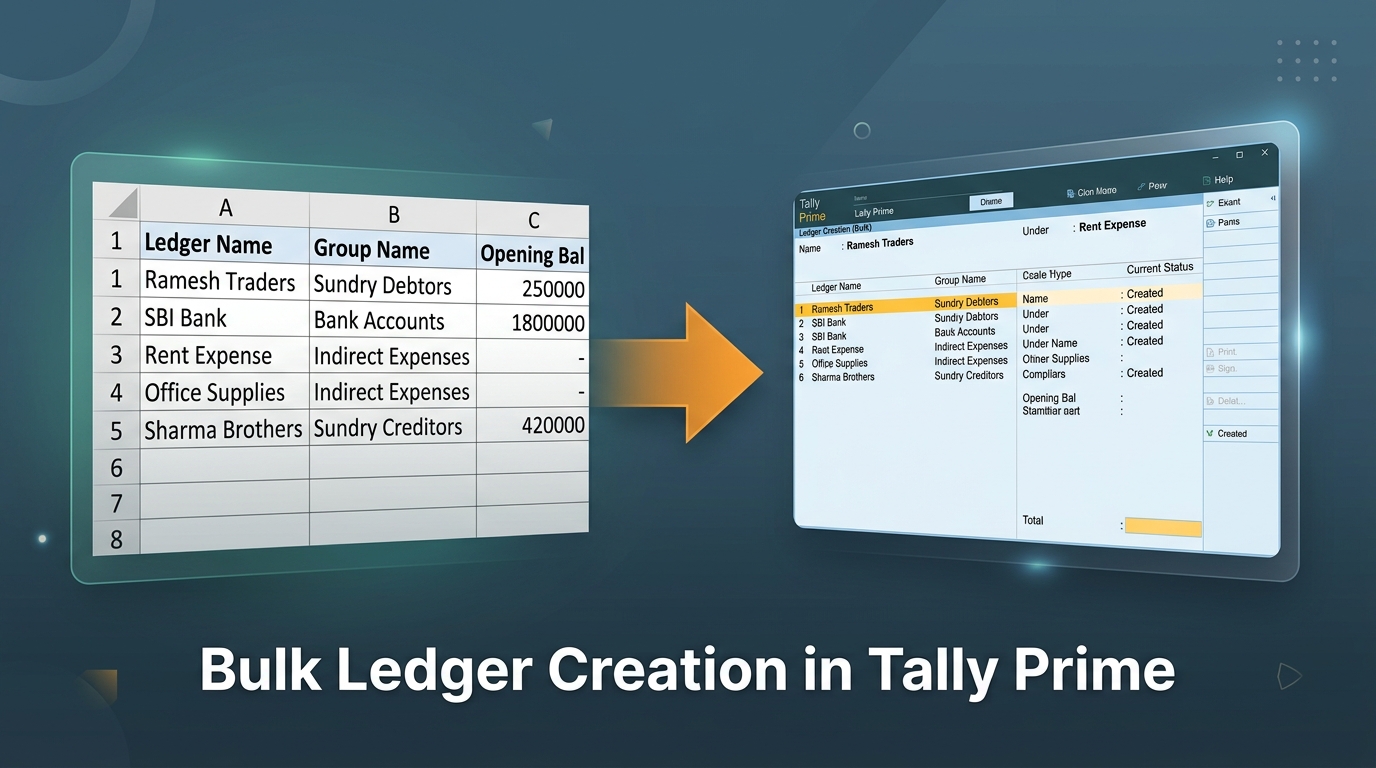
If you've ever taken on a new client's books and opened their Tally company to find zero ledgers set up, you know the specific dread this creates. Forty suppliers, sixty customers, a dozen expense heads — and Tally's default screen wants you to create each one, one at a time, filling in Name, Under Group, Opening Balance, GSTIN, over and over.
It doesn't have to be that way. There are two real ways to speed this up, and which one you should use depends on how much data you're dealing with and where it's coming from.
📋 In this guide:
Method 1: Tally's Built-in Multi Ledger Creation
Tally Prime does have a genuine bulk-creation screen — most people just never stumble on it because it's tucked away.
Here's how to get there:
- From the Gateway of Tally, press H or click on Chart of Accounts
- Under Accounting Masters, select Ledgers
- Press Alt+H and choose Multi Create
- Select the Group you want to create ledgers under (or choose "All Items" to mix groups in one screen)
- Type each ledger name and opening balance in the grid, row by row
- Press Ctrl+A to save all of them at once
This genuinely saves time over the single-ledger screen, because you're not exiting and re-entering a form for every ledger — it's a spreadsheet-like grid inside Tally itself.
It's still manual typing. If you already have a list of 80 suppliers in an Excel sheet with their GSTIN, address, and opening balances, you're not importing that — you're retyping it into Tally's grid, one field at a time. It's also single-group at a time in practice (mixing groups in "All Items" gets messy fast once you're past 15–20 ledgers), and there's no field for GSTIN, PAN, or address in this quick-create view — you'd still need to open each ledger afterward to add those.
So this method is genuinely useful when you're creating a short, quick list — say under 15–20 ledgers, no GST details needed, all in one group. Past that, or the moment GST-registered parties are involved, it starts costing more time than it saves.
Method 2: Import Ledgers from Excel via XML
The second option skips Tally's UI entirely for the bulk part. You prepare your ledger list in Excel — the same sheet a client or their previous accountant might already have — and convert it into an XML file that Tally imports directly.
This is the method worth using when:
- You're onboarding a new client and inheriting their existing ledger list
- You need GSTIN, PAN, State, and address filled in, not just names
- You're dealing with 20, 50, or 200+ ledgers at once
- The data already exists somewhere as a spreadsheet (which, in practice, it almost always does)
The genuinely useful part of doing it this way is that GST details don't have to be typed manually at all. If you type a GSTIN into the sheet, the State, Country, PAN, and GST Registration Type can be pulled straight from it — a GSTIN is structured so the first two digits are the state code and characters 3 to 12 are the PAN, so a formula (or the tool doing the conversion) can extract all of that instantly instead of you cross-checking a state code chart by hand.
Once the sheet is ready, the import path in Tally Prime is:
This is a different path from importing vouchers — Purchase, Sales, Payment entries use Import of Data → Transactions. Using the wrong menu is a very common source of "nothing happened" confusion after a ledger import.
For this, I use ImportXML's Ledger Master tool — you download a template, fill in Ledger Name, Under Group, and (if applicable) GSTIN, and it generates the import-ready XML with the GST fields auto-filled. It also runs entirely in the browser, so the spreadsheet with your client's data isn't going anywhere except your own machine.
Ledger Master XML Creator
Download the Excel template, fill in your ledger list (with optional GSTIN for auto-fill of State, PAN, GST type), and generate import-ready XML in seconds. Free, browser-based, no upload.
Open Ledger Master Tool →A Quick Comparison
| Tally Multi Create | Excel + XML Import | |
|---|---|---|
| Best for | Under 15–20 ledgers, quick, no GST | 20+ ledgers, especially with GST details |
| Data source | Typed fresh in Tally | Existing Excel sheet |
| GSTIN / State / PAN fields | Not included — add manually after | Auto-filled from GSTIN |
| Setup time | None, built into Tally | A few minutes to prepare the sheet |
| Good fit for | A handful of new expense ledgers | Client onboarding, migrating books |
Common Mistakes to Watch For
A few things trip people up regardless of which method they use:
"Under Group" spelling has to match exactly
If your Tally company has "Sundry Debtors" and your sheet says "Sundry Debtor" (missing the s), the import will either fail on that row or create a new, oddly-named group depending on your Tally settings. Copy the group names from an existing ledger in that company rather than typing from memory.
Duplicate names silently overwrite, not duplicate
Tally matches ledgers by name — if "Ramesh Traders" already exists and you import it again, Tally treats it as an update to the existing ledger, not a new one. Occasionally this is what you want; other times it means a typo in your sheet just quietly altered an existing ledger's group or balance without you noticing.
Opening balance direction matters
Whether a balance is Debit or Credit changes how it's stored, and getting this backwards on a bulk import means every affected ledger's balance shows on the wrong side of your trial balance — annoying to spot after the fact across 50 ledgers, much easier to catch in the sheet before importing.
FAQ
Can I create ledgers under multiple groups in one bulk import?
Yes, with the Excel/XML method — each row in your sheet can specify its own Under Group, so suppliers, customers, and bank accounts can all be in one file. Tally's native Multi Create screen is more restrictive since it works one group at a time in practice.
Does bulk ledger creation work the same way in Tally ERP 9?
The Multi Create screen exists in ERP 9 too, accessed slightly differently (through Accounts Info → Ledgers → Multiple Ledgers). XML import works in both ERP 9 and Prime, though the exact menu wording for imports differs slightly between versions.
What happens if a ledger already exists when I bulk import?
Tally matches by ledger name and updates the existing ledger rather than creating a duplicate. If you're not sure whether a name might already exist, it's safer to check first — an unexpected update to group or opening balance is easy to miss on a large import.
Do I need GSTIN for every ledger?
No — only GST-registered parties have one. Leave it blank for cash ledgers, unregistered dealers, or internal accounts like expense heads, and fill in State/Address manually for those instead.
Ready to bulk-create your ledgers?
Download the free Excel template, fill in your ledger list, and generate a Tally-ready XML file in under a minute — no signup, no upload, works entirely in your browser.